SEENALYZE AI

Input by SeenalyzeNew for Mac

Hold Fn.Speak.Done.

Input turns your voice into text in whatever app you're using. Your words land right where your cursor is, and a shelf in your notch keeps everything you copy close by.

For Apple Silicon Macs · macOS 13 or newer

  • Recognized on your Mac
  • Works in any app
  • Notch shelf
  • Screenshots + editor

Hover the notch to open the shelf

  • Hold to talk
  • Press to start, press to stop
  • Paste into any app
  • Recognized on your Mac
  • 40 language locales
  • Notch shelf
  • Clipboard history
  • Drag and drop
  • Window, area or full-screen capture
  • Built-in markup editor
  • Screen recording
  • Light and dark appearance

The film

See Input in under a minute

Fn, notch, shelf, screenshots. Turn the sound on.

FnNotch shelfScreenshots + editor
Still from the Input by Seenalyze product film showing the notch expanding into a live waveform

How it works

Three beats. No window to switch to.

  1. Hold Fn

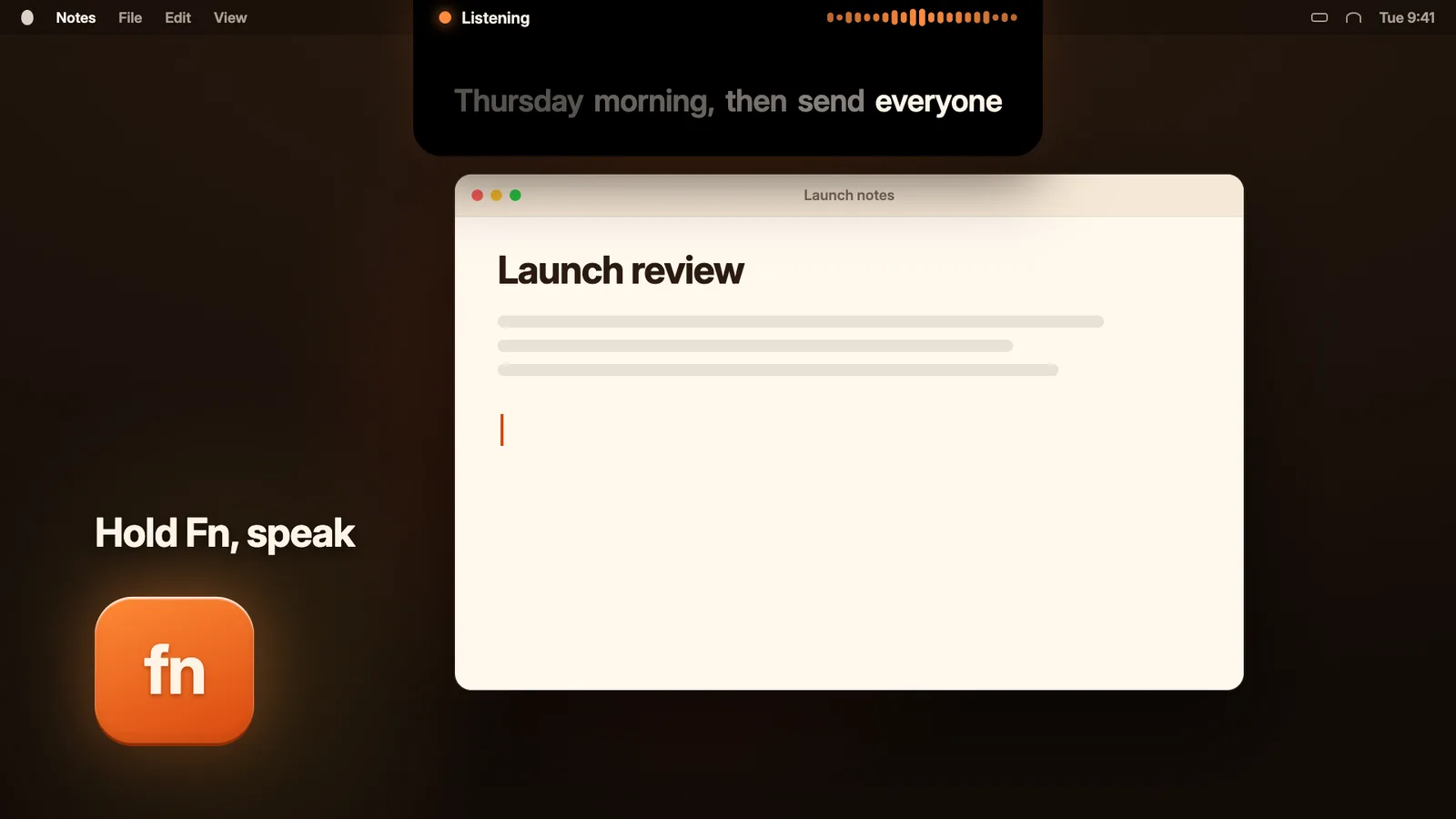
    Press and hold your shortcut in any app. The notch grows into a compact island with a live waveform that follows your voice.

  2. Speak naturally

    Talk the way you normally do. You'll see the latest words appear in the island as they're recognized on your Mac.

  3. Release to paste

    Let go and the transcript is pasted right where your cursor is, and copied to your clipboard too.

What's inside

One small utility. Four things you'll use all day.

Dictation

Talk instead of type, anywhere

Hold Fn, speak, release. Input recognizes your speech locally and pastes it into the focused app: mail, chat, code editors, documents, browser fields.

  • Hold to talk, or press once to start and once to stop
  • Use Fn, another modifier, a key combination, a function key or an extra mouse button
  • Press Esc at any time to cancel

Notch shelf

A shelf that lives in your notch

Rest your pointer on the notch and it opens into a shelf that keeps your recent clipboard text, images, files and screenshots within reach.

  • Drag images, files and text straight out into any app
  • Drop files or text onto the open shelf to keep them
  • Copies from password managers are skipped

Screenshots

Capture, then mark it up in seconds

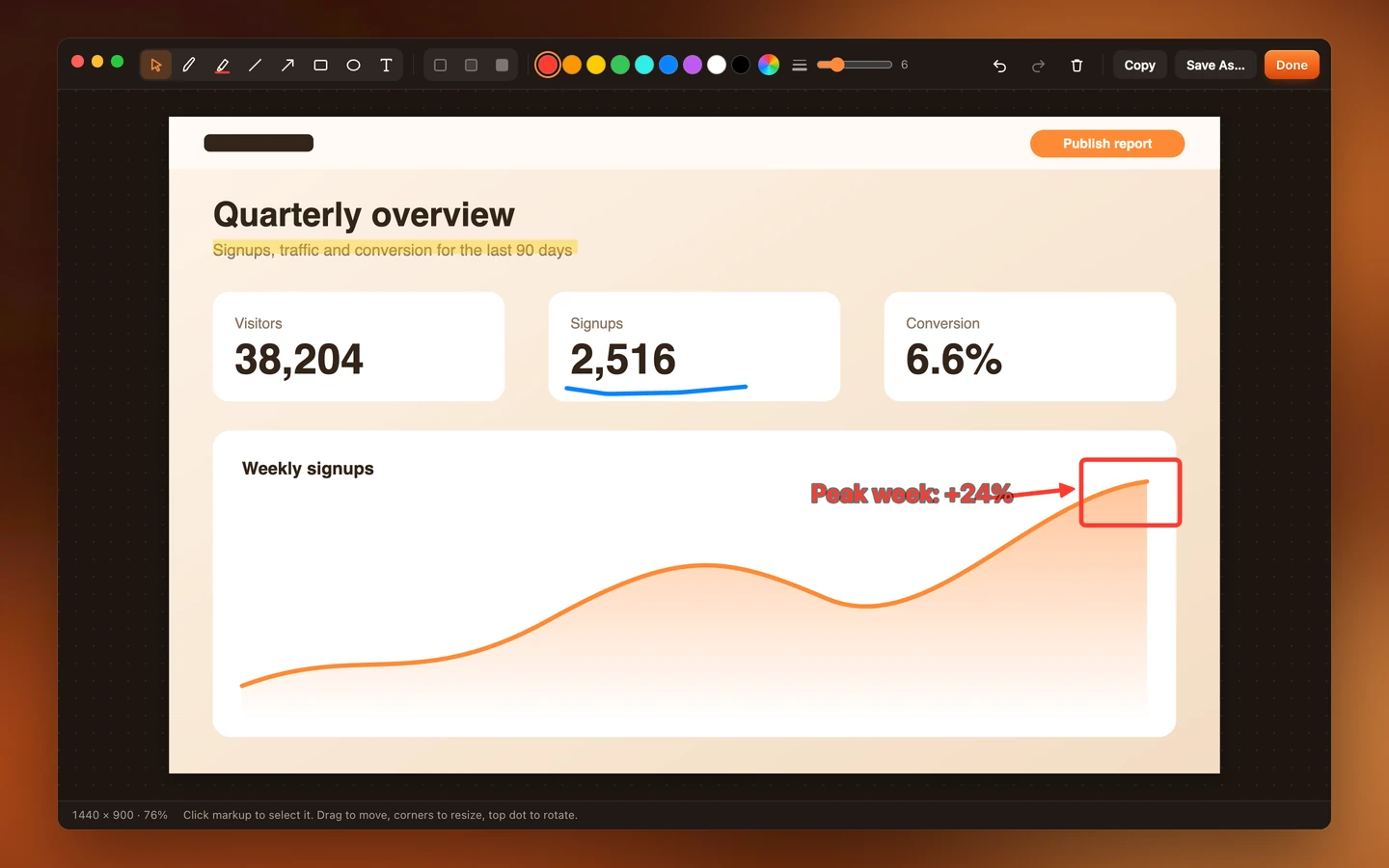
Press the capture shortcut to grab a window, an area or the full screen. The shot shrinks into your notch and opens a built-in editor when you want to annotate.

  • Window, Area and Full Screen modes, remembered next time
  • Pen, highlighter, lines, arrows, rectangles, circles and text
  • Copied to the clipboard automatically, unless you turn that off

Screen recording

Record your screen from the notch

Record a window, an area or the whole screen, with or without your microphone, then pause and stop from the notch without hunting for a menu.

  • Save as MP4 or WebM at native, 1080p or 720p
  • Choose your frame rate and microphone
  • New recordings land in the folder you pick

Feels like macOS

Quiet when you're working. Instant when you're not.

A home window for setup, history and settings, a menu bar item for status, and the notch for everything else.

Light appearance
Dark appearance

Built for your Mac

Small footprint. Big everyday reach.

Your voice stays on your Mac

Speech is recognized locally. Recent transcripts and usage totals stay on your Mac, and the diagnostic log never contains audio or transcript text.

40 language locales

Dictate in the language you think in. Recognition readiness varies by locale, so you can choose broader coverage or faster partial results.

Your shortcut, your rules

Fn by default, or record any modifier, key combo, function key or extra mouse button.

Pasted and copied

Every transcript is pasted into the focused app and copied to your clipboard.

Light, dark or system

Warm cream in the light appearance, roasted brown in the dark, with reduced-motion support.

Private by design

Recognition happens on your Mac, not in the cloud.

Input keeps the whole loop on your machine: listening, recognizing and pasting. Nothing about what you say needs to leave your Mac to become text.

  • On-device recognition

    Two local recognition modes to balance language coverage and speed.

  • Transcripts stay local

    Recent transcripts and usage totals are kept on this Mac.

  • Quiet logs

    Diagnostic logs never contain audio or transcript text.

Questions

Good to know before you download

A Mac with Apple Silicon running macOS 13 or newer. Input asks for Microphone and Accessibility access for dictation, and Screen Recording access for screenshots and recordings.

No. Speech is recognized locally on your Mac. Recent transcripts and usage totals stay on this Mac, and diagnostic logs do not contain audio or transcript text.

Yes. In Settings you can record any single modifier key, a key combination, a function key or an extra mouse button, and choose between hold to talk or press to start and stop.

Input covers 40 language locales. Recognition readiness varies by locale, and you can switch between a mode with broader coverage and one with faster partial results.

Recent clipboard text, images, files and screenshots. Drag items out into any app, drop files onto it to keep them, and turn the shelf and clipboard history off in Settings. Copies from password managers are skipped.

Yes. On displays without a notch, the island sits at the top center of your screen and behaves the same way.

Input by Seenalyze

Your voice is faster than your keyboard.

Download Input, hold Fn, and watch a sentence appear in the app you're already in.

For Apple Silicon Macs running macOS 13 or newer.

Input by SeenalyzeDownload for Mac